

Why does n8n work locally, but fail when you move it online? Your VPS may run, yet domains, webhooks, or HTTPS still cause problems. Docker settings and server ports can make a simple installation feel harder than expected.
A small configuration mistake can stop workflows or expose your server unnecessarily. Missing persistent storage can also cause trouble when containers are replaced. You need a setup that works reliably, not one that simply starts.
This guide explains how to self host n8n on a VPS in 10 practical steps. You will configure Docker, storage, domains, HTTPS, webhooks, security, and backups. You will also learn how to update, monitor, troubleshoot, migrate, and scale your n8n server.
What Is Self Hosted n8n and How Does VPS Hosting Work?
Self hosted n8n means running n8n on infrastructure you control, such as a virtual private server. You manage the server, storage, security, application configuration, and updates yourself. n8n then runs continuously and can execute workflows like lead routing, data syncing, and API automation.
A VPS is a virtual server hosted in a data center and available through the internet. It provides resources like CPU, RAM, storage, and networking for your n8n installation. n8n currently advertises more than 2,000 integrations for apps, services, and APIs.
What Does Self Hosting n8n Mean?
Self hosting gives you control over where n8n runs and how its infrastructure is configured. You decide how much server capacity to purchase and which database to use. You also control security settings, backup schedules, domains, and network access.
The tradeoff is responsibility for the server itself. n8n warns that self hosting requires knowledge of servers, containers, application security, configuration, and scaling. It recommends managed n8n Cloud for people who cannot safely manage those areas.
How Does n8n Run on a VPS?
n8n normally runs inside a Docker container that stays active on your VPS. Docker provides an isolated environment containing the application and its required software. Docker Compose defines the container, volumes, environment settings, and related services in one configuration.
Public traffic usually follows a simple path from your domain to HTTPS and then n8n. A reverse proxy receives requests on port 443 and forwards them to n8n on port 5678. Persistent storage keeps important n8n data available when containers restart or are recreated.
How Do I Self-Host n8n on a VPS?
You self host n8n on a VPS by preparing Linux, installing Docker, deploying n8n, and securing public access. The complete process can be organized into 10 steps. Each step solves one part of installation, networking, security, or reliability.
- Choose the VPS and prepare your requirements.
- Prepare and secure the Linux server.
- Install Docker Engine and Docker Compose.
- Configure n8n environment variables.
- Deploy n8n with Docker Compose.
- Connect your domain or subdomain.
- Configure HTTPS and a reverse proxy.
- Configure webhooks correctly.
- Complete your first n8n setup and test it.
- Secure the installation and create backups.
n8n recommends Docker for most self hosting needs because it simplifies application and environment management. Its older Docker installation page now directs users toward Docker Compose as the recommended installation method.
The remaining sections walk through each step in practical order. Do not skip storage, HTTPS, webhook, or backup configuration just because the login screen works. A working editor does not automatically mean the server is ready for production.
Step 1: What Do You Need Before Installing n8n on a VPS?
You need a Linux VPS, SSH access, Docker support, storage, and preferably a domain before installing n8n. You should also know the public IP address assigned to your server. A domain becomes especially useful for HTTPS, OAuth connections, and public webhooks.
For a basic installation, use a current Linux distribution supported by Docker. Ubuntu LTS is a common choice for VPS deployments because of its broad documentation and package support. Debian based servers can also work when you install supported Docker packages.
VPS, Domain, and SSH Requirements
Your VPS must provide administrative access and enough resources for your expected n8n workload. SSH lets you manage the server from computers like laptops, desktops, and workstations. Your hosting provider normally gives you the IP address, username, and initial authentication method.
A subdomain such as n8n.example.com is usually cleaner than placing n8n on your main website address. Create an A record that points this subdomain to your VPS IPv4 address. n8n’s official deployment documentation also uses a DNS record that points a subdomain toward the server.
How Much RAM, CPU, and Storage Does n8n Need?
There is no single VPS size that fits every n8n workload because resource use depends on workflow behavior. Simple API workflows use fewer resources than workloads involving large files, code execution, and concurrent processes. Additional containers like PostgreSQL, Redis, and reverse proxies also consume resources.
For a simple n8n installation, 2 GB RAM and 1 vCPU can be a practical starting point. For regular business automation, 4 GB RAM and 2 vCPUs provide more operating room. Heavy workloads involving AI processing, large binary files, or high concurrency may require 8 GB RAM or more.
These figures are planning suggestions rather than universal n8n minimum requirements. The current official Compose setup that includes the n8n Assistant sandbox requires at least 4 GB RAM and 2 vCPUs because its sandbox runs extra containers.
Should You Use Manual Setup or a One Click n8n VPS?
Use manual Docker Compose installation for greater control and a one click template for faster initial deployment. Both approaches can provide a working self hosted n8n instance. The difference is how much of the initial server configuration is prepared for you.
Manual setup helps you understand files, volumes, environment variables, Docker networks, and reverse proxy settings. That knowledge becomes useful when troubleshooting, updating, backing up, or migrating the server. It also makes it easier to verify exactly how the installation is secured.
One click VPS templates can save time by installing components like Docker and n8n automatically. However, they do not remove your responsibility for security, backups, updates, webhooks, and monitoring. n8n also provides a current one line setup option for users who want faster deployment without writing every configuration file manually.
Step 2: How to Prepare Your VPS for n8n
Prepare your VPS by connecting through SSH, installing system updates, creating an administrator account, and configuring network access. These steps give n8n a cleaner and safer foundation. Complete them before exposing the application to public traffic.
Connect to the VPS With SSH
Connect to the VPS using its public IP address and the account provided by your host. Open a terminal and use the following command. Replace the example IP with the actual address of your VPS.
ssh root@YOUR_VPS_IPThe first connection may ask you to verify the server fingerprint. Confirm it only when the fingerprint matches information provided by your host. SSH keys are preferable to reusable passwords for long term administrative access.
Update the Server and Create a Sudo User
Update installed packages before adding Docker or other application software. This installs current security fixes and package updates available for your Linux release. On Ubuntu, run the following commands.
apt update

apt upgrade
Create a separate administrator account for routine server management. A command sequence like the following creates a user named deploy and gives it sudo access. Test the new account before changing root access.
adduser deploy

usermod -aG sudo deploy
Configure the Firewall and Required Ports
Your firewall should normally allow SSH, HTTP, and HTTPS while blocking unnecessary inbound connections. These services commonly use ports 22, 80, and 443. UFW provides a simple firewall interface on Ubuntu servers.
sudo ufw allow OpenSSH

sudo ufw allow 80/tcp

sudo ufw allow 443/tcp

sudo ufw enable
n8n normally listens internally on port 5678. When a reverse proxy handles public connections, you generally do not need to expose port 5678 directly. Keeping that port private reduces unnecessary public access to the application service.
Step 3: How to Install Docker and Docker Compose for n8n
Install Docker Engine and Docker Compose before creating your n8n service. Docker runs n8n inside a container, while Compose describes how that container should operate. n8n recommends Docker for most self hosting needs.
Use Docker’s official installation instructions for your Linux distribution rather than relying on outdated package tutorials. After installation, verify both Docker Engine and Compose. The following commands should return installed version information.
docker --version

docker compose version
Docker Compose v2 uses the command docker compose rather than the older docker-compose format. n8n’s current Compose documentation lists Docker Engine and Docker Compose v2 among its prerequisites.
You may add your administrator account to the Docker group for easier management. Remember that Docker access gives a user extensive control over the host system. Only trusted administrator accounts should receive that permission.
sudo usermod -aG docker $USERStep 4: How to Configure n8n Environment Variables
Environment variables tell n8n how to handle its public address, webhooks, timezone, encryption, and other deployment settings. Store these values in a protected .env file where appropriate. Do not upload secrets from this file to public repositories.
Create a dedicated project directory before adding configuration files. Keeping n8n configuration in one directory simplifies updates, backups, and migration later. The following commands create a project folder and open an environment file.
mkdir -p ~/n8n

cd ~/n8n

nano .env
Set the Host, Protocol, and Webhook URL
Set the public hostname, HTTPS protocol, webhook address, and proxy information to match your final domain. Replace n8n.example.com with the hostname you actually control. Your environment configuration can include values like these.
N8N_HOST=n8n.example.com

N8N_PROTOCOL=https

N8N_WEBHOOK_URL=https://n8n.example.com/

N8N_PROXY_HOPS=1
n8n normally builds webhook addresses using its protocol, host, and internal port. That automatic method can produce incorrect addresses behind a reverse proxy because n8n sees port 5678 internally. The official documentation therefore recommends setting N8N_WEBHOOK_URL manually and N8N_PROXY_HOPS to 1 for a typical single proxy setup.
The older WEBHOOK_URL variable is now deprecated from n8n 2.35.0. Current installations should use N8N_WEBHOOK_URL instead. n8n logs a deprecation warning when the older variable remains configured.
Set the Encryption Key and Timezone
Set a strong encryption key and correct timezone before storing important credentials. n8n automatically creates an encryption key at first startup, but defining your own makes recovery planning clearer. Generate a strong random value and store a secure backup separately.
openssl rand -hex 32Add the value and timezone settings to your configuration. GENERIC_TIMEZONE affects schedule oriented nodes, while TZ controls the container’s system timezone. n8n documents both timezone settings for Docker based installations.
N8N_ENCRYPTION_KEY=YOUR_RANDOM_KEY

GENERIC_TIMEZONE=Etc/UTC

TZ=Etc/UTC
Step 5: How to Deploy n8n With Docker Compose
Deploy n8n by defining its container, persistent volume, environment settings, and restart behavior in a Compose file. Docker Compose makes the deployment repeatable instead of relying on a long manual command. It also makes future configuration changes easier to review.
Create the Docker Compose File
Create a Compose file that runs n8n and keeps its internal application port private. A simple deployment can bind port 5678 to localhost. Your reverse proxy will later forward public traffic to that address.
services:

  n8n:

    image: n8nio/n8n:stable

    restart: unless-stopped

    env_file:

      - .env

    ports:

      - "127.0.0.1:5678:5678"

    volumes:

      - n8n_data:/home/node/.n8n

volumes:

  n8n_data:
n8n releases new minor versions most weeks according to its documentation. The stable channel is intended for production, while beta contains newer changes that may be unstable. For important business installations, consider pinning a tested version so upgrades remain deliberate.
Configure Persistent Storage
Persistent storage keeps important n8n data available after container recreation and server restarts. Mount the n8n data volume at /home/node/.n8n. The official Docker documentation uses the same location for persistent application data.
By default, n8n uses SQLite for information like workflows, credentials, and execution data. Even when PostgreSQL is used, n8n recommends continuing to persist the .n8n directory. It can still contain important information including encryption material, logs, and other instance assets.
Start and Verify the n8n Container
Start n8n in the background and confirm that Docker reports the container as running. Run the following commands from your project directory. The first starts the service, while the second displays its current status.
docker compose up -d

docker compose ps
If the service stops or repeatedly restarts, inspect its logs before changing configuration. Logs often reveal problems like invalid variables, permission failures, or database connection errors. Use the following command to watch n8n output.
docker compose logs -f n8nStep 6: How to Connect a Domain or Subdomain to n8n
Connect your domain by creating a DNS record that points your chosen hostname to the VPS public IP address. A subdomain like n8n.example.com keeps n8n separate from your primary website. It also gives webhooks and OAuth callbacks a stable public address.
Create the DNS A Record
Create an A record for your n8n subdomain and point it to the VPS IPv4 address. You configure this record through the DNS provider managing your domain. A basic record can use n8n as its host and your VPS address as its destination.
Do not enter https:// in the DNS record because DNS only maps names to network addresses. HTTPS is configured later through your reverse proxy and certificate. Keep the DNS record simple and verify the value before continuing.
Check DNS and Server Connectivity
Confirm that the domain resolves to the correct VPS before requesting an HTTPS certificate. Tools like dig and nslookup can show the IP address returned by DNS. Replace the example hostname with your own domain.
dig n8n.example.com

nslookup n8n.example.com
Some DNS changes take time to reach different resolvers because previous records may remain cached. Wait until the hostname returns the correct VPS IP before troubleshooting the reverse proxy. Incorrect DNS will prevent reliable certificate and webhook configuration.
Step 7: How to Set Up HTTPS and a Reverse Proxy for n8n
Use a reverse proxy to provide HTTPS while forwarding approved requests to n8n on its private application port. This keeps external traffic on standard web ports like 80 and 443. It also provides one place to manage certificates and forwarding rules.
Choose Nginx, Caddy, or Traefik
Nginx, Caddy, and Traefik can each act as an n8n reverse proxy. Nginx offers detailed manual configuration and broad documentation. Caddy simplifies automatic HTTPS, while Traefik integrates closely with container based environments.
Choose one reverse proxy based on the infrastructure you are comfortable maintaining. Avoid installing multiple proxies unless your architecture genuinely requires them. A simple deployment is easier to troubleshoot and secure.
Your final proxy should forward information about the original request to n8n. Official n8n guidance identifies headers including X-Forwarded-For, X-Forwarded-Host, and X-Forwarded-Proto for reverse proxy deployments.
Protect n8n With SSL and HTTPS
HTTPS encrypts traffic between n8n and clients like browsers, webhook platforms, and connected services. Obtain a trusted TLS certificate for your n8n hostname. Services like Let’s Encrypt can provide certificates without a certificate purchase.
Your final editor address should look similar to https://n8n.example.com. Test it from a different internet connection after the proxy is configured. Confirm that the browser reports a valid certificate without warnings.
Should You Expose Port 5678?
Do not expose port 5678 publicly when your reverse proxy can reach n8n through localhost or a private network. Port 443 should handle public HTTPS connections instead. Your proxy then forwards each approved request internally.
This design reduces the number of services directly reachable from the internet. It also keeps certificate management and public traffic rules at the proxy layer. Your VPS firewall normally needs public access only for SSH, HTTP, and HTTPS.
Step 8: How to Configure n8n Webhooks Correctly
Configure n8n webhooks with the exact public HTTPS address that external services can reach. Webhook problems are common when n8n works internally but sits behind a reverse proxy. The editor may load even while webhook callbacks point to the wrong address.
Test Webhooks vs Production Webhooks
Use test webhook URLs while building workflows and production webhook URLs after workflows are published or active. Test URLs are designed for development sessions where n8n is listening for a test event. Production URLs are intended for ongoing external traffic.
This distinction matters for services like Stripe, Telegram, GitHub, and payment platforms. A test URL may stop listening after the development session ends. Register the correct production URL with the external service once your workflow is ready.
Both webhook types must be reachable from outside your VPS when external platforms call them. Addresses containing localhost cannot be reached by remote services. Public integrations normally need a valid HTTPS hostname.
Fix Incorrect HTTP, Localhost, and Domain URLs
Set N8N_WEBHOOK_URL when n8n displays localhost, HTTP, an internal port, or the wrong hostname. Behind a proxy, n8n sees its internal port while visitors reach the application through port 443. The public address therefore needs to be defined explicitly.
N8N_WEBHOOK_URL=https://n8n.example.com/

N8N_PROXY_HOPS=1
Restart or recreate the n8n service after modifying environment variables. Then inspect the webhook URL again and send a real request from outside the VPS. A correct public URL should use your domain and HTTPS.
Step 9: How to Complete Your First n8n Setup
Complete the initial setup by creating the owner account and running at least one test workflow. Do this only after the domain, HTTPS, storage, and core configuration are working. Testing now makes later troubleshooting much easier.
Create the Owner Account
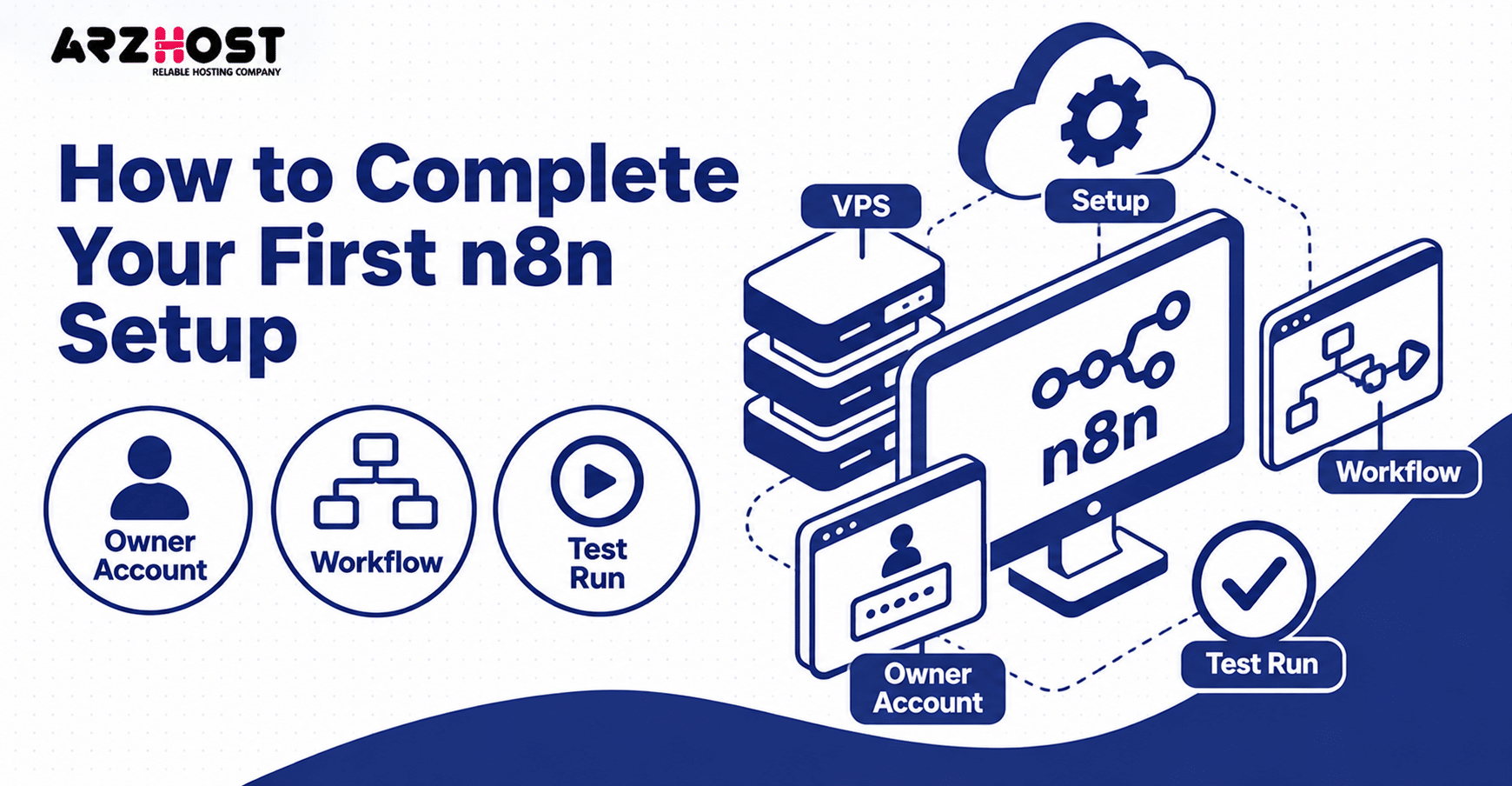
Open your HTTPS domain and create the first n8n owner account. Use a unique password that is not reused on websites or other systems. Protect this account because it controls workflows, credentials, and important instance settings.
Avoid adding sensitive credentials before confirming that your persistent storage works. Restart the n8n container once and confirm that the account and configuration remain available. This simple test can reveal storage problems before real workflows depend on the server.
Run a Test Workflow
Create a small workflow to verify that n8n can execute nodes and reach external services. For example, connect a Manual Trigger to an HTTP Request node. Then execute the workflow and verify that the request succeeds.
Next, create one webhook based test to confirm public connectivity. n8n’s integration directory currently advertises more than 2,000 integrations across apps, services, and APIs. Examples include Google Sheets, Gmail, OpenAI, Slack, Telegram, and Postgres.
Step 10: How to Secure and Back Up a Self Hosted n8n VPS
Finish the deployment by protecting access, preserving encryption information, and creating recoverable backups. Self hosting transfers infrastructure responsibility from n8n Cloud to you. Security and recovery therefore belong in the installation process rather than being treated as optional extras.
Protect Credentials and the Encryption Key
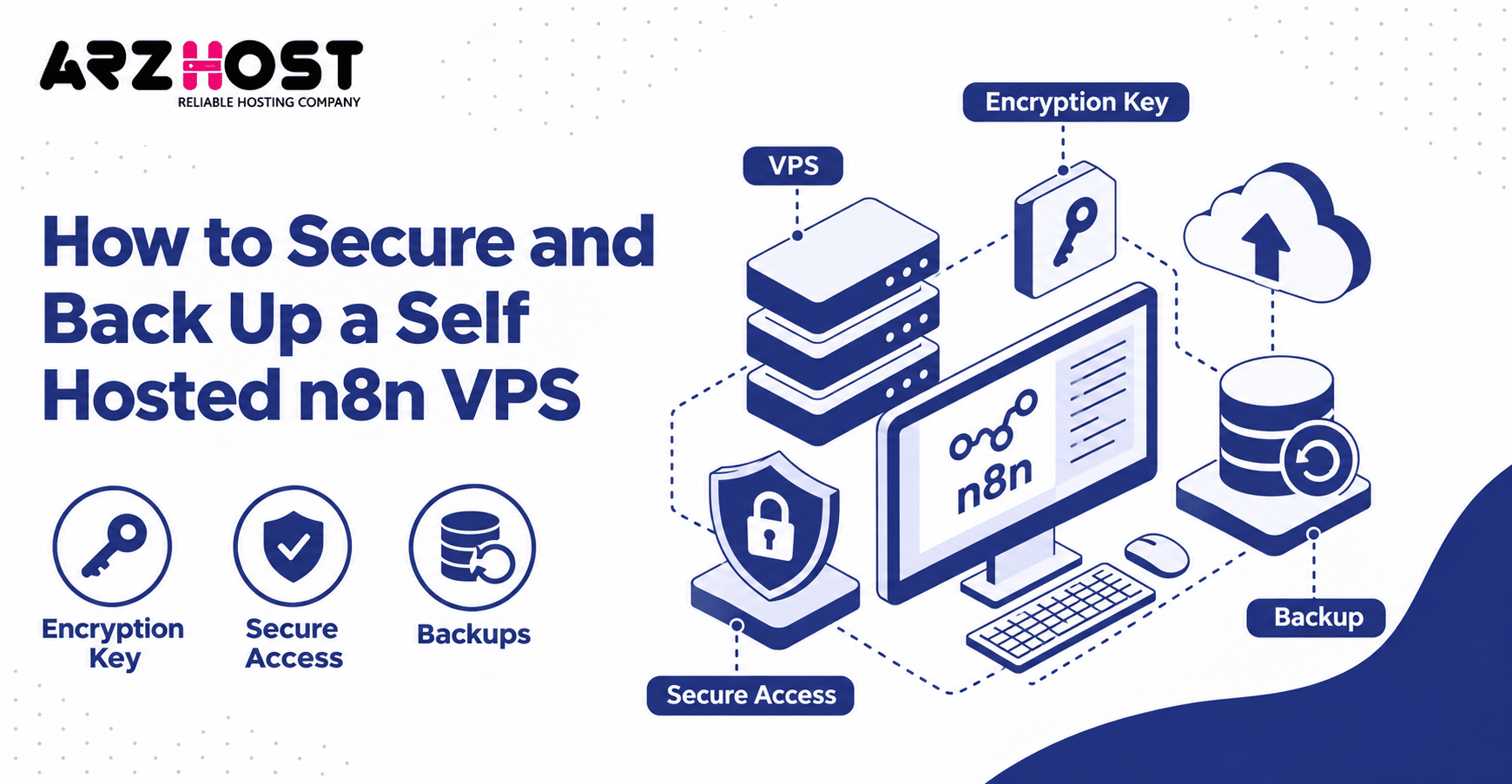
Store your n8n encryption key securely because it protects credentials saved by the instance. Do not place it in public repositories or paste it into shared documents without access controls. Preserve at least one protected copy outside the VPS.
n8n generates an encryption key automatically at first startup when you do not provide one. Queue mode requires the main instance, workers, and webhook processors to share the same encryption key. Otherwise those processes cannot read credentials stored in the database.
Secure SSH, Docker, and Database Access
Limit administrative access to trusted users and keep infrastructure services private whenever possible. Use SSH keys, install security updates, and review firewall rules periodically. Avoid publicly exposing databases like PostgreSQL and Redis unless your architecture specifically requires secured remote access.
Docker group membership also deserves careful control because Docker provides extensive access to the server. Remove unused accounts and avoid sharing administrator credentials. n8n also provides a security audit feature that checks areas including credentials, databases, file access, nodes, and instance settings.
What Should You Back Up?
Back up every component required to rebuild the same n8n instance after losing the VPS. This normally includes your database, .n8n data, encryption key, .env file, and Compose configuration. Include custom nodes and external binary storage when your installation uses them.
Keep at least one backup somewhere outside the VPS itself. A backup stored only on the same server disappears if the entire server is deleted or corrupted. Protect backup files because they may contain credentials, environment secrets, and workflow data.
Should You Use SQLite or PostgreSQL With n8n?
SQLite is suitable for simple installations, while PostgreSQL is the better choice for larger production workloads. n8n uses SQLite by default when no external database is configured. This keeps early testing and small personal deployments relatively simple.
The current n8n Compose documentation says SQLite is fine for trying n8n. It recommends PostgreSQL for production instances handling more than a small number of users or workflows running continuously. Existing SQLite data does not automatically migrate when a fresh PostgreSQL configuration is added.
PostgreSQL also becomes important when you move toward queue mode and multiple workers. n8n specifically says running queue mode with SQLite is not recommended. Choose the database based on actual production needs rather than adding extra complexity immediately.
How to Back Up and Restore n8n
A useful n8n backup must let you recreate workflows, credentials, configuration, and stored data after a failure. Copying only workflow definitions is not enough for complete recovery. Your recovery plan should cover both application configuration and persistent data.
For a Docker installation using SQLite, preserve the .n8n volume along with deployment files and your encryption key. For PostgreSQL, create database backups and still preserve the .n8n directory because n8n recommends keeping it persistent. The directory can contain important information beyond the SQLite database itself.
How to Restore n8n After a Server Failure
Restore the database, encryption key, persistent volume, environment configuration, and Compose files onto the replacement server. Install compatible Docker tooling first, then restore your n8n files before starting the service. Using the same tested n8n version can reduce unnecessary variables during recovery.
After startup, test the owner account, credentials, workflows, webhooks, schedules, and external integrations. A backup should be considered reliable only when it can actually be restored. Test the recovery process periodically instead of discovering missing information during a real outage.
How to Update n8n Without Losing Workflows
Update n8n by backing up first, choosing a tested release, recreating the container, and verifying important workflows afterward. Persistent volumes separate application data from the disposable container. However, backups remain important because application upgrades can still introduce configuration or database changes.
n8n states that it releases a new minor version most weeks. Its documentation identifies stable as the production release channel and beta as the newest channel that may be unstable. Production servers should use deliberate updates rather than automatically following every newly published image.
Back Up Before Updating
Create a fresh recovery point before changing the n8n image version. Preserve your database, encryption key, .n8n data, Compose configuration, and environment file. Record the currently working n8n version so you know which application version was tested with that backup.
Version pinning makes this process easier because upgrades happen when you change the image tag intentionally. Review important release information before major changes. Database changes and deprecated configuration variables deserve particular attention.
Update, Verify, and Roll Back Safely
Pull the selected image, recreate the service, and inspect its logs immediately after updating. The basic Docker Compose process uses the following commands. Run them from the directory containing your Compose configuration.
docker compose pull

docker compose up -d

docker compose logs -f n8n
Verify login access, credentials, webhooks, scheduled workflows, and important integrations after the update. If serious problems appear, return to your previously tested image and restore data when required. Do not discover your rollback process for the first time during an outage.
How to Monitor n8n and VPS Performance
Monitor CPU, RAM, storage, container health, logs, and execution growth on your n8n VPS. Monitoring shows whether the server still matches your workload. It also helps detect issues before important workflows begin failing.
Monitor CPU, RAM, Disk Space, and Logs
Use Linux and Docker tools to check resource usage and application behavior. Commands like free, df, and docker stats provide quick information about memory, disk capacity, and containers. Docker Compose logs show application errors and startup problems.
free -h

df -h

docker stats

docker compose logs n8n
Sustained memory pressure can cause processes to terminate or become unstable. Full storage can prevent databases, logs, and execution information from being written correctly. Watch trends instead of checking resources only after a failure.
Manage Workflow Execution Data
Control execution data growth so old workflow history does not consume unnecessary database storage. Saved executions are useful for debugging failures and reviewing automation behavior. However, retaining every successful execution forever may create avoidable storage growth.
Choose retention settings that match operational and compliance needs. Keep failed executions long enough for troubleshooting and preserve records required by your organization. Monitor database size as workflow frequency increases.
Common n8n VPS Problems and How to Fix Them
Most n8n VPS problems can be traced to Docker, DNS, proxy configuration, storage, databases, or environment settings. Start with the simplest evidence instead of changing several settings at once. Container status and application logs should normally be your first checks.
n8n Does Not Load or Shows Connection Refused
Check whether the n8n container is running and listening before troubleshooting the domain. Use Docker Compose to inspect the service status and recent logs. If the container is healthy, check DNS, proxy configuration, firewall rules, and local connectivity next.
docker compose ps

docker compose logs n8n
A running container does not prove that the public route works. Your domain can still point to the wrong IP address or your proxy can forward traffic incorrectly. Test each layer separately to identify where the connection stops.
Docker Container Keeps Restarting
A repeatedly restarting container usually has a configuration, resource, permission, or dependency problem. Read the last log messages instead of repeatedly issuing restart commands. The application usually records the actual startup error.
Common causes include invalid environment values, inaccessible storage, unavailable databases, and insufficient memory. Correct the reported cause before recreating the service. Check Docker and server logs if the n8n output does not explain the failure.
HTTPS or Reverse Proxy Errors
A proxy error usually means the reverse proxy cannot reach n8n or cannot complete the requested HTTPS connection. Confirm that n8n is listening on its expected internal address. Then verify the proxy target, certificate, hostname, and forwarded headers.
A 502 Bad Gateway response often indicates an incorrect upstream address or unavailable n8n service. Certificate warnings can indicate a hostname mismatch or failed certificate issuance. Test DNS before repeatedly changing proxy configuration.
Webhooks or OAuth Connections Do Not Work
Check the public n8n address when the editor works but webhooks or OAuth callbacks fail. Your browser reaching the editor does not prove that callback URLs are correct. Confirm N8N_WEBHOOK_URL, HTTPS, DNS, workflow activation, and proxy headers.
OAuth providers like Google, Microsoft, GitHub, and Slack require callback addresses that match their registered configuration. Update those addresses when moving n8n to another domain. For webhooks, make sure the external service uses the production URL rather than a temporary test URL.
How to Scale n8n When Your Workflows Grow
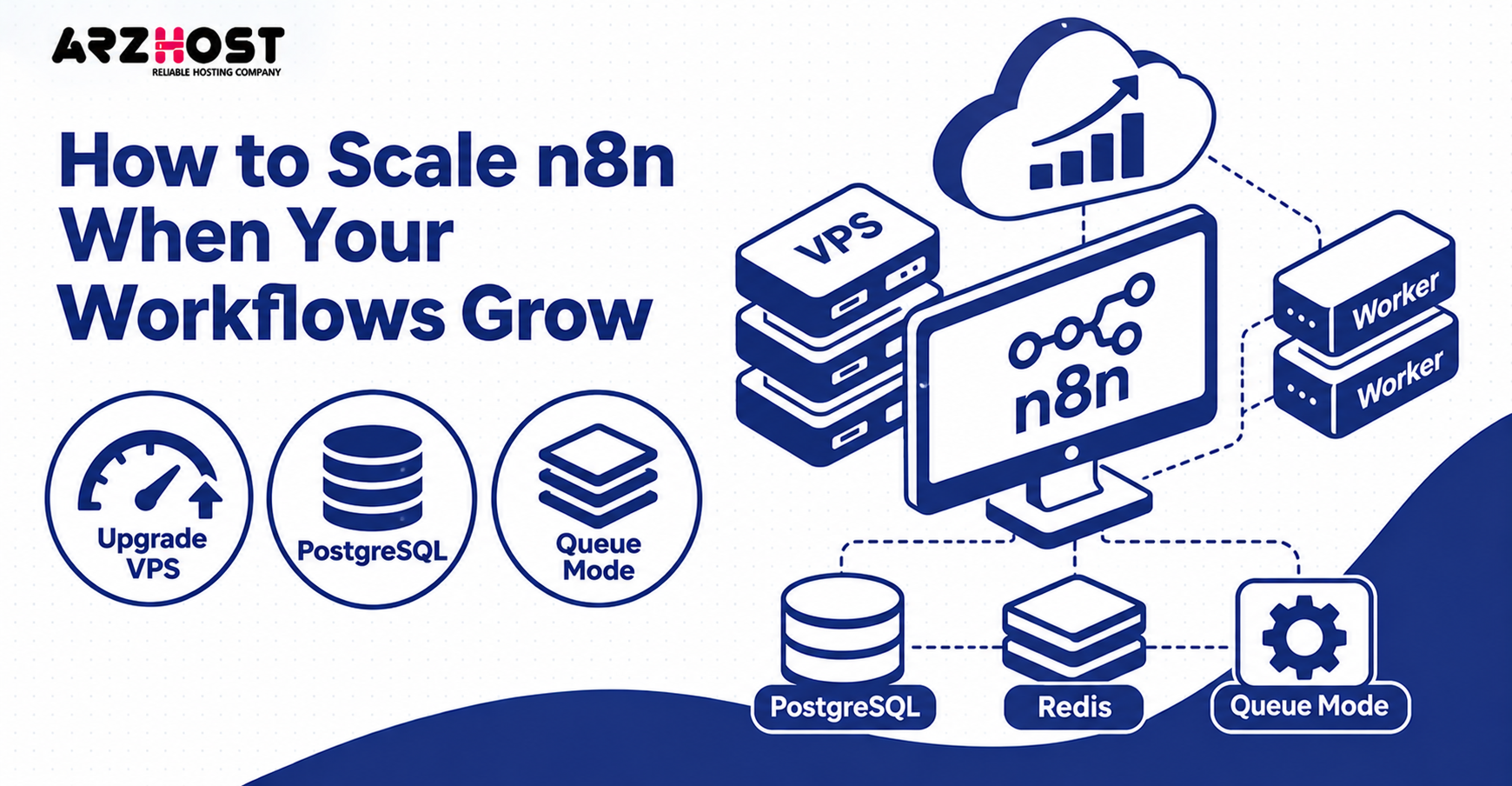
Scale your self hosted n8n deployment when CPU, memory, execution delays, or concurrency consistently exceed one server’s comfortable capacity. Start with simple changes before introducing distributed infrastructure. A larger VPS is easier to operate than multiple n8n processes.
When Should You Upgrade Your VPS?
Upgrade your VPS when resource usage remains high during normal workload periods rather than during occasional short spikes. For example, moving from 2 GB to 4 GB RAM may provide enough headroom for growing workflow volume. Adding vCPUs can help when multiple CPU intensive executions run together.
Review workflow design before increasing resources automatically. Large payloads, unnecessary loops, long execution history, and local file processing can increase resource use. Fixing inefficient automation can sometimes delay an infrastructure upgrade.
When Do You Need PostgreSQL, Redis, Queue Mode, and Workers?
Use queue mode when one n8n execution process can no longer handle your workload reliably. n8n describes queue mode as the option that provides its best scalability. A main instance receives triggers and webhooks while worker instances execute queued workflows.
Redis stores pending execution identifiers so available workers can retrieve new work. Workers then read workflow information from the shared database and write completed execution results back. You can add or remove workers as workload requirements change.
Do not build this architecture for a small VPS without a measurable reason. n8n does not recommend queue mode with SQLite, so PostgreSQL should be part of this scaling path. All workers must also share the same encryption key as the main instance.
How to Move n8n to Another VPS
Move n8n by transferring its persistent data, database, encryption key, configuration, and public routing to the new server. Create a complete backup before touching DNS. Keep the old VPS available until the replacement instance passes your tests.
Install Docker and Docker Compose on the new server first. Restore your .env, Compose configuration, .n8n data, database, and other required storage. Start n8n using a compatible application version and verify that credentials remain readable.
Test the new server before changing normal traffic. Then update your DNS A record and verify HTTPS, webhooks, OAuth callbacks, schedules, and integrations. Decommission the old server only after the new deployment has operated successfully.
How Much Does It Cost to Self Host n8n?
The cost of self hosting n8n includes infrastructure even when you use its Community Edition. Expenses can include the VPS, domain registration, backup storage, monitoring, managed databases, and administrator time. Your monthly total therefore depends more on infrastructure requirements than on one fixed n8n hosting price.
VPS, Domain, Backup, and Maintenance Costs
The VPS is usually the main direct cost for a small self hosted installation. Entry level servers cost less than high capacity servers with extra RAM, vCPUs, and storage. Resource requirements rise when you add workloads like AI processing, large files, PostgreSQL, Redis, or multiple workers.
Domains are another small recurring expense, while remote backups may add storage costs. Managed monitoring and external databases can add further charges. Maintenance time also has value because someone must handle security, upgrades, troubleshooting, and recovery.
Is Self Hosted n8n Really Free?
Self hosted n8n can remove a managed Cloud subscription expense, but the complete deployment is not automatically free. You still need somewhere to run the application. A VPS normally carries a recurring hosting charge.
You could run n8n on hardware you already own, but that introduces power, networking, uptime, and remote access responsibilities. A VPS simplifies continuous internet availability by hosting the server in a data center. Compare total ownership costs rather than looking only at the software price.
n8n Cloud vs Self Hosted n8n: Which Should You Choose?
Choose self hosted n8n when you want infrastructure control, and choose n8n Cloud when you want managed hosting. Both approaches let you build n8n workflows. The main difference is who manages the underlying server responsibilities.
Self hosting gives you control over server resources, networking, database choices, deployment settings, and where infrastructure runs. You also become responsible for security, backups, updates, monitoring, troubleshooting, and scaling. This flexibility is useful for technical teams that already operate servers.
n8n Cloud removes much of that infrastructure work so you can focus primarily on building workflows. n8n explicitly warns that self hosting requires technical knowledge and that mistakes can cause data loss, security problems, and downtime. Users without server management experience should consider that operational responsibility before choosing a VPS.
Conclusion
In conclusion, Self hosting n8n on a VPS gives you direct control over your workflows, server resources, security, storage, and updates. A reliable setup depends on choosing the right VPS, installing Docker correctly, configuring persistent storage, connecting a domain, enabling HTTPS, setting webhooks, and protecting your encryption key. As your automation needs grow, you can move from SQLite to PostgreSQL, upgrade server resources, add monitoring, and scale with Redis and workers when needed.
The most important part is keeping the server secure, backed up, and easy to recover. Test workflows, webhooks, updates, and backups regularly so problems are caught early. If you are ready to manage the infrastructure yourself, start with a small VPS, follow the 10 setup steps, and build your n8n environment around the workload you actually need.
Frequently Asked Questions About Self Hosting n8n on a VPS
Can n8n Run on a 1 GB VPS?
Yes, n8n may run on a 1 GB VPS for very small workloads, but memory will be limited. Linux, Docker, n8n, and additional services all consume RAM. A 2 GB or 4 GB VPS provides more room for practical production use.
Do not treat RAM alone as the only capacity measure. Workflow concurrency, large payloads, binary files, and additional containers can increase memory usage significantly. Monitor actual resource use after deployment.
Do I Need a Domain to Self Host n8n?
No, a domain is not required for local testing, but it is strongly recommended for public production use. A domain provides a stable address for HTTPS, webhooks, and OAuth callbacks. It also avoids tying integrations directly to a replaceable VPS IP address.
A subdomain like n8n.example.com is usually enough. Point it to your VPS through a DNS A record. Then configure HTTPS and n8n’s public URL around that hostname.
Is Docker Required to Run n8n?
No, Docker is not the only way to install n8n, but n8n recommends it for most self hosting needs. Docker provides isolation and reduces operating system compatibility problems. It also simplifies environment and database management.
For current deployments, Docker Compose is the preferred path over the older standalone Docker instructions. Compose keeps your service configuration in reusable files. This makes the installation easier to maintain and recreate.
Can I Run n8n Without PostgreSQL?
Yes, n8n uses SQLite by default, so PostgreSQL is not required for a basic installation. SQLite works well for learning, testing, and smaller deployments. It also reduces the number of services you need to administer.
PostgreSQL becomes more suitable as production requirements grow. The current n8n Compose documentation recommends PostgreSQL for more demanding production instances. Queue mode with SQLite is specifically not recommended.
Is Self Hosted n8n Secure?
Self hosted n8n can be secure when the VPS, application, credentials, network, and backups are configured properly. Self hosting itself does not automatically create a secure deployment. You are responsible for maintaining those controls.
Use HTTPS, SSH keys, restricted ports, protected secrets, strong account credentials, and current software. Keep databases and internal services private where possible. You can also use n8n’s security audit to identify several categories of common instance risks.
What Happens if I Lose My n8n Encryption Key?
Losing the encryption key can prevent n8n from decrypting credentials protected by that key. Back up the key in a secure location outside the VPS. Keep access limited because the key protects sensitive credential information.
The key becomes even more important when you scale n8n. Queue mode requires workers and webhook processors to use the same encryption key as the main instance. Different keys prevent those processes from accessing stored credentials correctly.
Can I Move n8n to a Bigger VPS Later?
Yes, you can move n8n to a larger VPS when your workload outgrows the original server. Preserve your database, persistent data, environment configuration, encryption key, and deployment files. Restore those components on the replacement VPS before moving production traffic.
Test workflows, webhooks, OAuth integrations, and credentials on the new server. Change DNS only after the new instance works correctly. Keep the old VPS available temporarily as a rollback option.
Is Self Hosting n8n Worth It in 2026?
Self hosting n8n is worth considering when infrastructure control and configuration flexibility justify the extra administration. It gives technical teams control over server capacity, data location, networking, and deployment architecture. It also makes those teams responsible for availability, maintenance, security, and recovery.
The platform supports broad automation use, with n8n currently advertising more than 2,000 integrations for apps, services, and APIs. Choose self hosting when you can manage the infrastructure reliably, and choose managed Cloud hosting when reducing server administration matters more.