


A VPS hostname is a unique name used to identify your virtual private server. It helps server owners recognize and manage their servers. But what is hostname of VPS, and how does it connect to your domain or IP address?
A hostname can be a simple name like server1 or a complete name like server1.example.com. Your server uses this name for identification, while DNS can connect it to an IP address. Choosing the correct hostname helps with server management, remote access, and email configuration.
This guide explains VPS hostnames, their types, and their differences from domain names. You’ll learn five practical steps to find, set, and verify your VPS hostname. We’ll also explain DNS configuration, naming rules, and common hostname problems.
What Is a VPS Hostname?
A VPS hostname is a name assigned to a Virtual Private Server to identify it on a network. It acts as the server’s identity within its operating system and connected network. A hostname can also be used for remote access when name resolution is configured.
For example, a VPS with IP address 192.0.2.10 might use server1.example.com as its hostname. The hostname is easier to recognize than a numerical address. However, assigning the name does not automatically create a public DNS record.
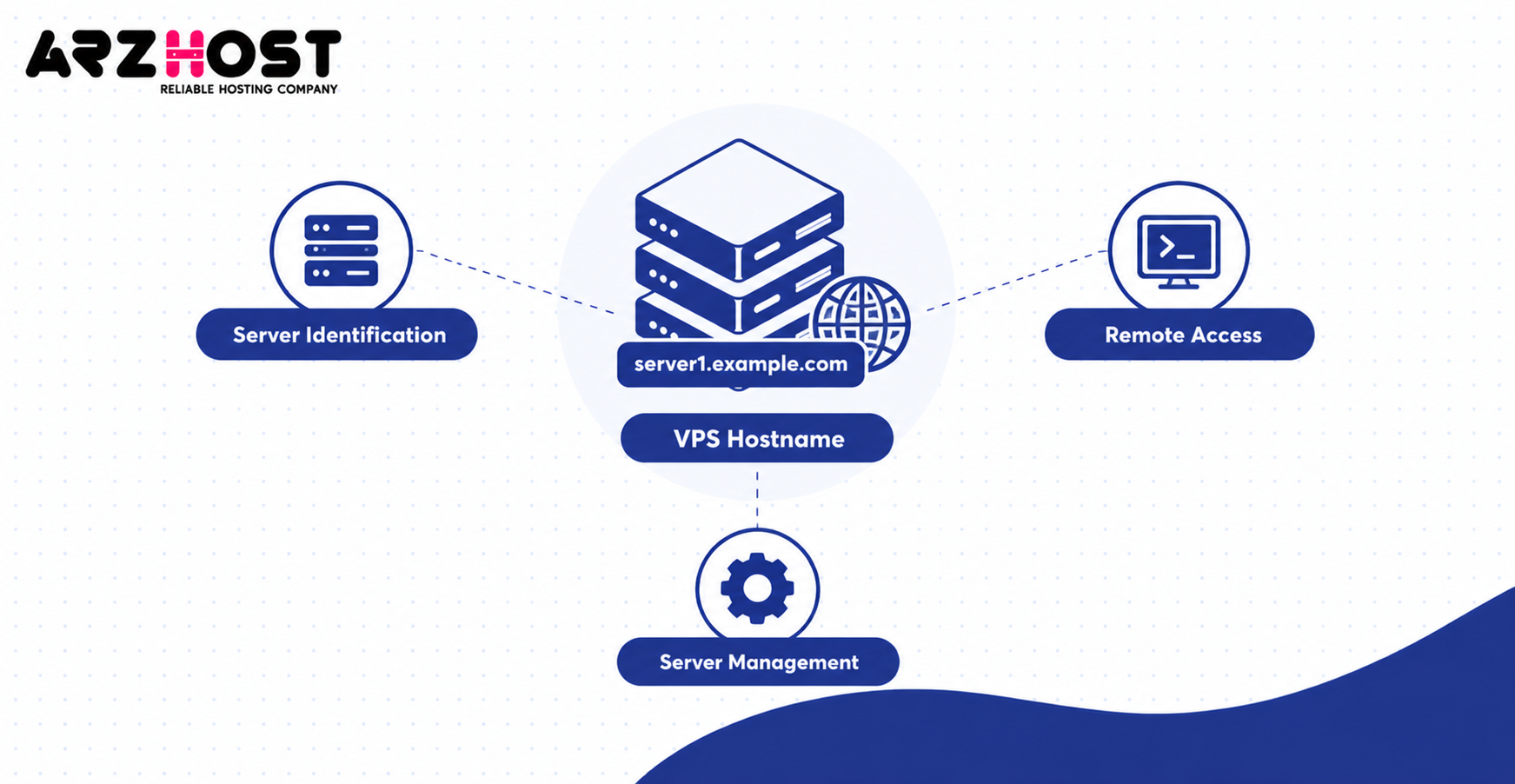
A VPS hostname serves three main purposes:
- Server identification: Distinguishes web01.example.com from mail01.example.com.
- Remote access: Allows SSH connections using a hostname when DNS resolves correctly.
- Server management: Helps administrators identify servers used for hosting, email, or development.
A VPS can operate with a short local hostname without a registered domain. However, public hostname access normally requires DNS configuration. Hosting panels like WHM also have specific hostname requirements.
What Are the Different Types of VPS Hostnames?
The three common types are short hostnames, fully qualified domain names, and provider assigned hostnames. Each represents a different naming format or assignment method. Understanding these differences helps you choose the correct name during VPS setup.
Short Hostname
A short hostname identifies a server without including its domain name. For example, server1 or web01 can identify a Linux VPS. The name works within the operating system without requiring public DNS.
Short hostnames are commonly used for local identification and server administration. They do not automatically resolve over the public internet. A complete domain-based hostname is usually better for publicly accessible VPS services.
Fully Qualified Domain Name (FQDN)
An FQDN is the complete DNS name identifying a host within the domain naming system. For example, server1.example.com identifies a host under example.com. The name can be resolved to an IP address when the correct DNS record exists.
A typical FQDN contains two recognizable parts:
- Host label: server1
- Domain: example.com
Control panels like WHM require a properly formatted FQDN for server configuration. The FQDN should identify the server rather than simply repeat the main website address. For example, server1.example.com can identify a server hosting www.example.com.
Default Hostname Provided by Your VPS Host
A default hostname is automatically assigned by your VPS provider during server creation. For example, a provider might assign vps-123.provider.example to a new VPS. This provides an initial server identity before you choose a custom name.
The default hostname may appear in your VPS dashboard or Linux configuration. Providers like GoDaddy and Contabo offer hostname management through their supported interfaces or server tools. Available options depend on the provider and VPS management plan.
What Should You Enter as Your VPS Hostname?
Enter a valid server name, preferably a subdomain you control, such as server1.example.com. This identifies your VPS separately from your main website. If your hosting provider requires an FQDN, enter the complete name.
You can choose a name based on the server’s purpose. For example, web01.example.com can identify a web server, while mail.example.com can identify a mail server. A consistent naming format also helps when managing multiple VPS instances.
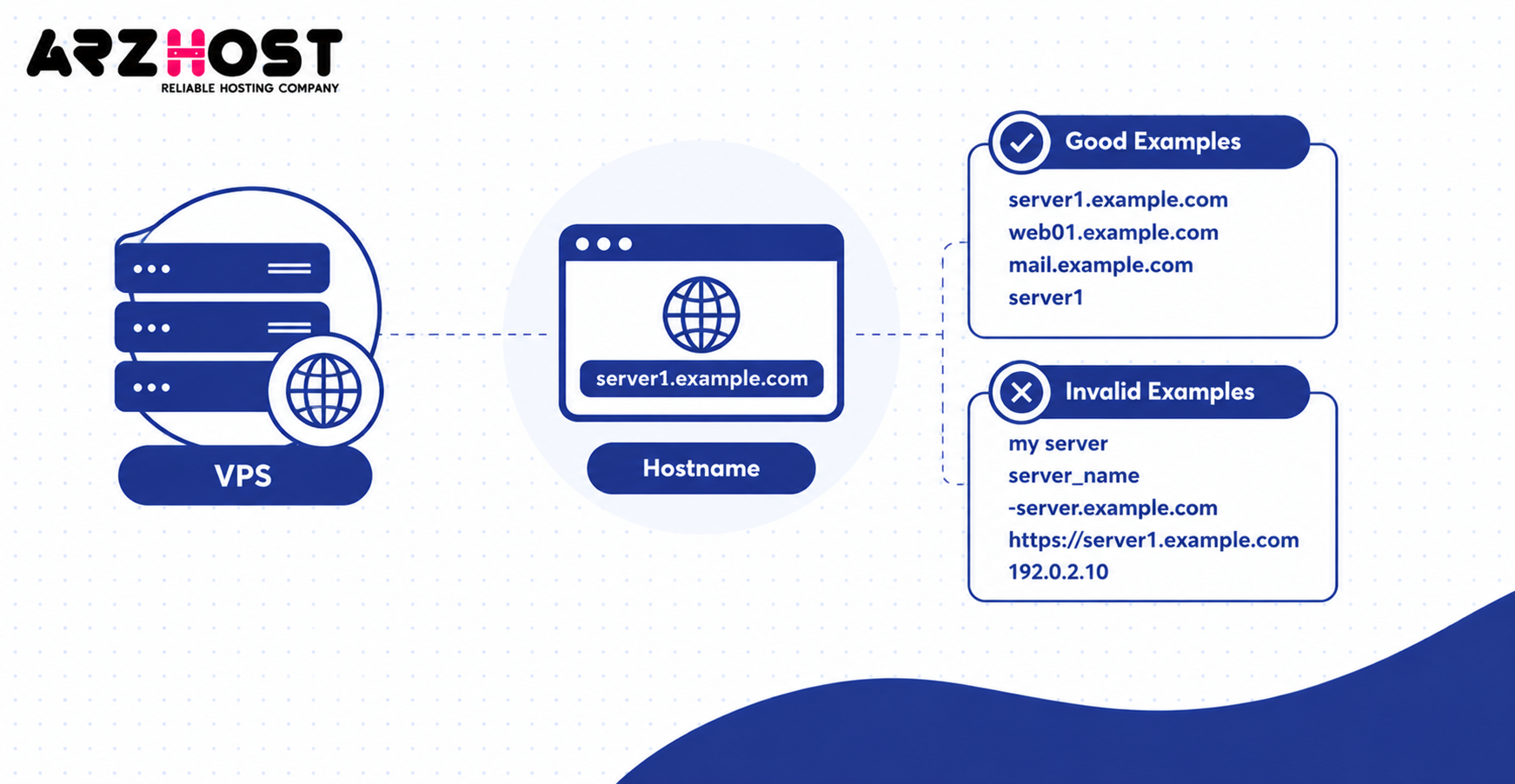
Good and Bad VPS Hostname Examples
| Hostname | Status | Reason |
| server1.example.com | Good | Complete hostname |
| web01.example.com | Good | Identifies a web server |
| mail.example.com | Good | Identifies a mail server |
| server1 | Valid locally | Short hostname |
| my server | Invalid | Contains a space |
| server_name | Avoid | Contains an underscore |
| -server.example.com | Invalid | Label begins with a hyphen |
| https://server1.example.com | Invalid | Includes a URL scheme |
| 192.0.2.10 | Incorrect | IP address, not a hostname |
VPS Hostname Naming Rules
A valid internet hostname uses letters, numbers, and hyphens within its labels. Each label must follow hostname syntax requirements. Some control panels apply additional restrictions beyond standard DNS rules.
Follow these basic rules:
- Use names such as server1, web01, or mail-server.
- Avoid spaces, underscores, and symbols like @ or #.
- Never begin or end a hostname label with a hyphen.
- Keep each standard ASCII DNS label within 63 characters.
- Use a subdomain you control when configuring a public FQDN.
According to RFC 1035, a DNS label has a maximum length of 63 octets. WHM recommends a hostname of 60 characters or fewer. WHM also requires an FQDN and restricts names beginning with www or a number.
Can You Use Your Own Domain?
Yes, you can use a subdomain of your registered domain as a VPS hostname. For example, owning example.com allows you to configure server1.example.com. You must create the appropriate DNS record if you want public resolution.
A registered domain is not required for a purely local hostname. However, public DNS requires control of a domain or access to a provider managed hostname. Your VPS provider may supply a usable hostname without requiring another domain purchase.
VPS Hostname vs. Domain Name vs. IP Address
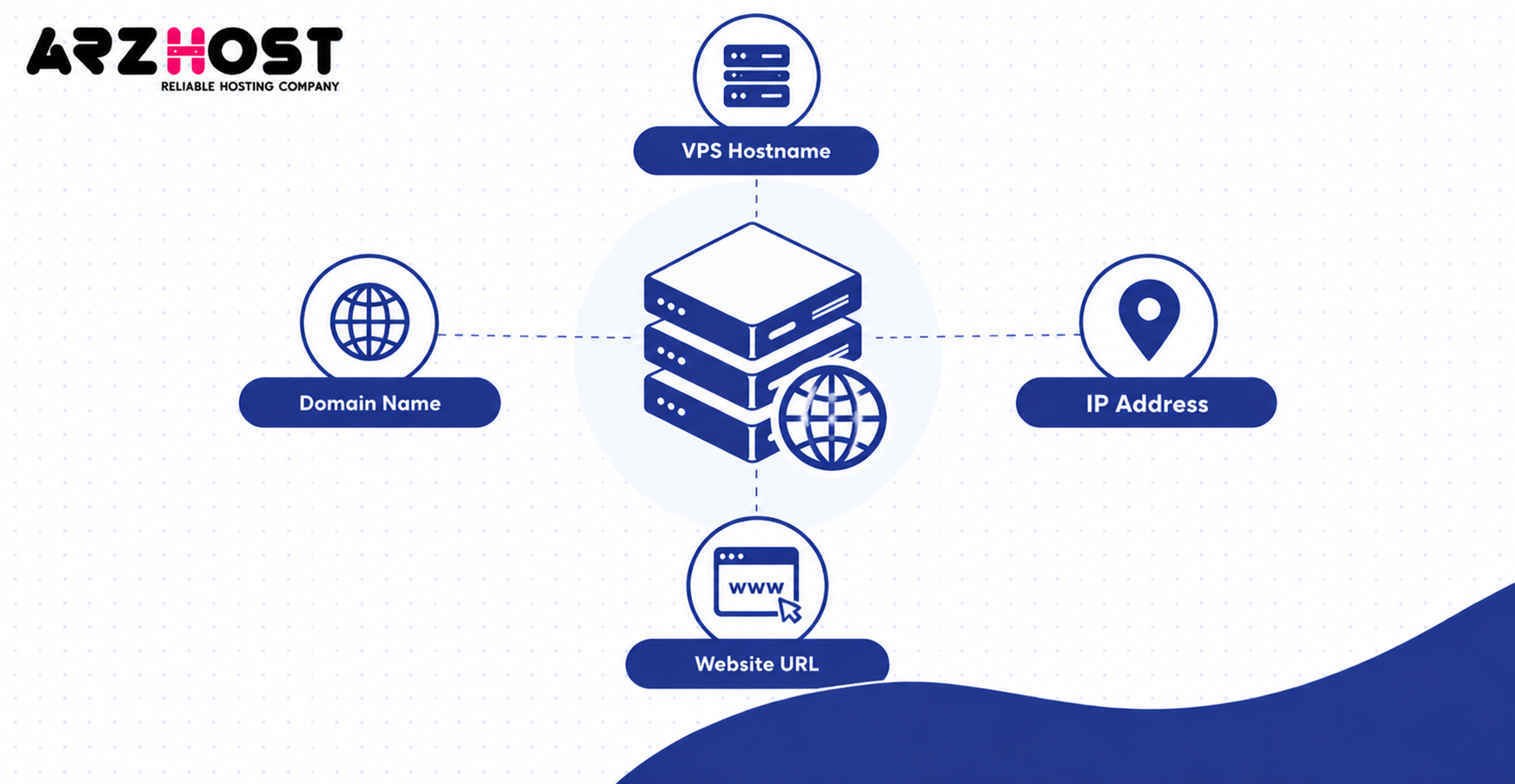
A hostname identifies a server, a domain organizes DNS names, and an IP address identifies a network endpoint. These values have different purposes, although they frequently work together. Understanding their relationship prevents common VPS configuration mistakes.
| Component | Purpose | Example |
| VPS hostname | Identifies the server | server1.example.com |
| Short hostname | Local server name | server1 |
| Domain name | DNS naming identity | example.com |
| IP address | Network endpoint | 192.0.2.10 |
| Website URL | Address of a web resource | https://www.example.com |
How Do Hostnames, Domains, and IP Addresses Work Together?
DNS allows a hostname to resolve to an IP address when a matching record exists. For example, server1.example.com can resolve to 192.0.2.10. A client can then use that address to contact the VPS.
Your website may use www.example.com while your server uses server1.example.com. Both names can resolve to the same IP address. The web server determines which website to serve based on the requested hostname and its configuration.
Changing the VPS hostname does not automatically rename your website. Your website domain and server hostname can remain completely separate. However, changes may affect services that explicitly reference the old hostname.
How to Find Your VPS Hostname
You can find your VPS hostname using SSH, Linux commands, or your hosting provider’s dashboard. The operating system reveals its configured name, while the dashboard may show the provider assigned name. Comparing both helps identify configuration differences.
Step 1: Check Your VPS Hostname Using SSH
Connect to your VPS through SSH and run the hostname command. SSH provides secure remote terminal access to your server. You need the correct server IP address, SSH port, and login credentials.
Connect using:
ssh root@192.0.2.10
Replace 192.0.2.10 with your actual VPS IP address. Your provider may use a different administrative username or SSH port. Once connected, check the hostname using the following command.
hostname
Example output:
server1
For detailed system hostname information, run:
hostnamectl
To check the fully qualified hostname, run:
hostname -f
The FQDN command depends on your system’s name resolution configuration. It may return server1.example.com when the local name resolves correctly. An unexpected result does not necessarily mean your public DNS is incorrect.
Step 2: Find Your Hostname in Your Hosting Dashboard
Your VPS hosting dashboard may display the assigned hostname under server details or settings. This is useful when SSH access is unavailable. The exact location varies between hosting providers.
Follow these general steps:
- Log into your VPS hosting account.
- Open your VPS management area.
- Select the relevant server.
- Find Hostname, Server Name, or Server Details.
- Compare the displayed hostname with your operating system hostname.
The dashboard value may differ from the active Linux hostname. This can happen after manual configuration changes or provider-side updates. Check the server directly before assuming both names match.
Find Your VPS IP Address
Your VPS public IP address is usually displayed in the hosting dashboard’s network information. You can also query the public address from Linux. This helps confirm which IP should appear in your DNS record.
For example, run:
curl -4 https://api.ipify.org
The command returns the IPv4 address visible to that external service. This may be a gateway address if your VPS uses network address translation. Check your provider dashboard to confirm the correct public address.
To inspect addresses assigned to the server’s interfaces, run:
ip addr
This displays interface information, including IPv4 and IPv6 addresses. Some addresses may be private rather than publicly reachable. Always distinguish an assigned interface address from the public address used for DNS.
How to Set or Change Your VPS Hostname
You can change a hostname on a systemd-based Linux VPS using hostnamectl. This command updates the operating system hostname without normally requiring a reboot. However, public DNS and application settings must be managed separately.
Step 3: Set Your New VPS Hostname on Linux
Use hostnamectl set-hostname to assign your new server name. The following example applies to modern Linux distributions using systemd. You need administrative access to perform the change.
First, check the existing hostname:
hostnamectl
Then set the new hostname:
sudo hostnamectl set-hostname server1.example.com
Replace server1.example.com with your intended hostname. The command changes the operating system’s configured hostname. It does not automatically create an A record or update reverse DNS.
Step 4: Update Hostname Settings and Verify Changes
Verify the hostname and check local name resolution after making the change. Linux commonly stores the static hostname in /etc/hostname. Local hostname mappings may also exist in /etc/hosts.
Check the saved hostname:
cat /etc/hostname
Inspect the local hosts file:
cat /etc/hosts
On a typical Ubuntu system, the file may contain:
127.0.0.1 localhost
127.0.1.1 server1.example.com server1
Only modify the hostname mapping if your system requires it. Preserve unrelated entries, including existing IPv6 localhost mappings. The correct configuration can differ between Linux distributions and hosting environments.
Verify the result:
hostnamectl
hostname -f
getent hosts server1.example.com
The first command shows the configured hostname, while the second tests FQDN resolution. The third checks the system’s configured name resolution sources. Successful local resolution does not automatically confirm public DNS availability.
Changing Your Hostname in WHM or Plesk
Managed control panels may require hostname changes through their own management interfaces. For WHM, navigate to Networking Setup → Change Hostname. Enter a valid FQDN and follow the interface instructions.
WHM requires the hostname to identify the server uniquely. It also applies additional naming rules to prevent invalid configurations.
Plesk administrators should use the supported server settings interface for their version. Provider managed installations may restrict access to hostname changes. Always verify panel specific requirements before modifying a production server.
What Should You Check Before Changing a Hostname?
Check any service that depends on your server’s existing name. Mail configuration, SSL/TLS certificates, and management panels may reference that hostname. Changing it without updating dependent configuration can cause connection or certificate errors.
Create a backup of important configuration files before modifying a production VPS. Confirm that SSH access through the server IP remains available. This provides an alternative connection method if hostname-based access stops working.
How to Connect Your VPS Hostname to an IP Address
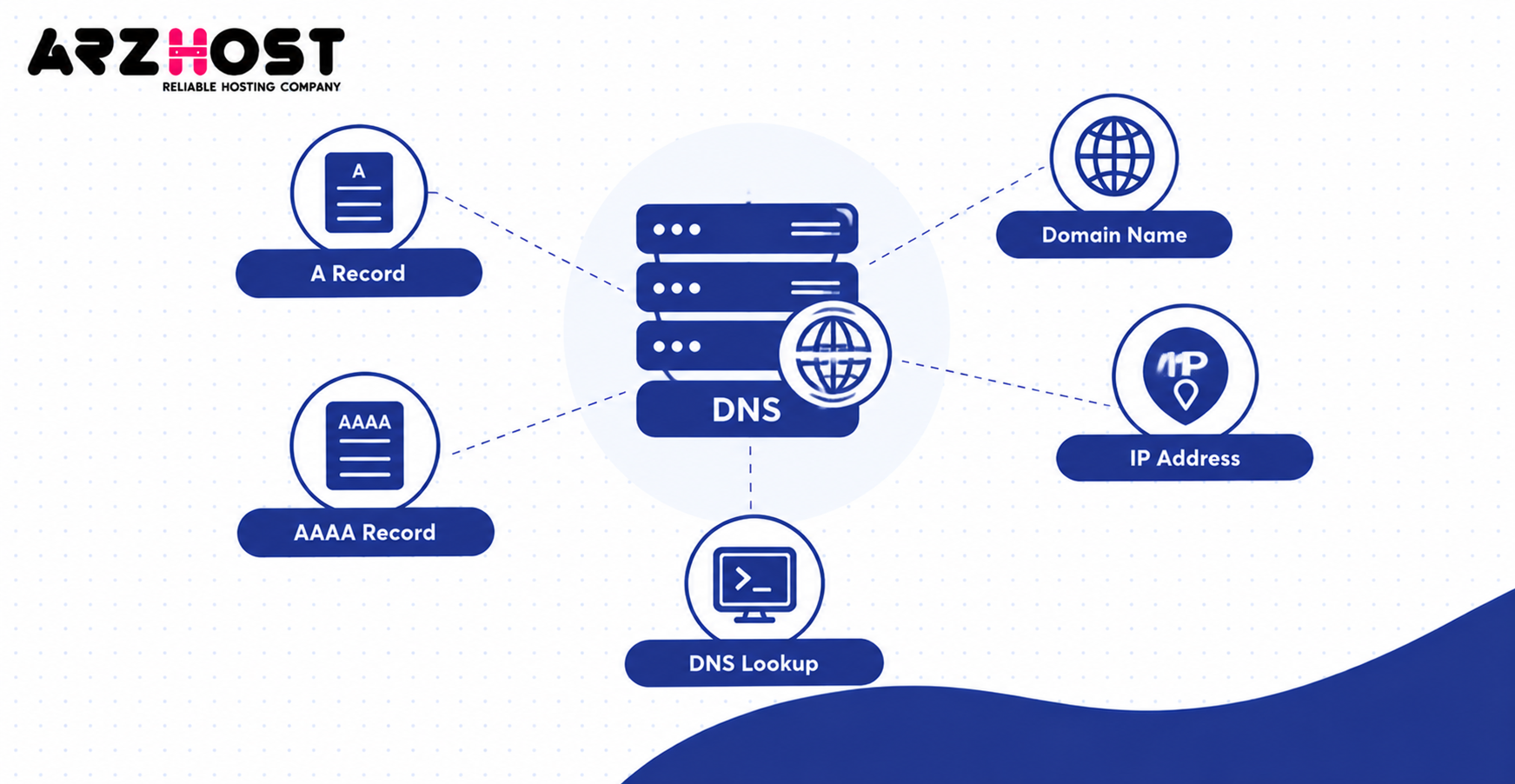
Connect your VPS hostname to its public IP address by configuring the appropriate DNS record. An A record maps the hostname to IPv4, while an AAAA record maps it to IPv6. This allows public DNS lookups to return the server’s address.
Step 5: Configure DNS and Verify Your VPS Hostname
Create an A record in the DNS zone that controls your domain. For example, you can map server1.example.com to your VPS public IPv4 address. Add an AAAA record only when the VPS has a working public IPv6 address.
| DNS record | Hostname | Example value |
| A | server1.example.com | 192.0.2.10 |
| AAAA | server1.example.com | 2001:db8::10 |
These IP addresses are reserved for documentation and are not live server addresses. Replace them with the actual addresses supplied by your hosting provider. Save the DNS records in the authoritative DNS management system.
You can verify forward DNS using:
dig +short server1.example.com A
dig +short server1.example.com AAAA
The A record should return your configured public IPv4 address. The AAAA record should return IPv6 only when configured. If the result is missing or incorrect, check the domain’s authoritative nameservers and DNS zone.
What Is Reverse DNS for a VPS Hostname?
Reverse DNS maps an IP address back to a hostname using a PTR record. This is particularly relevant when operating a mail server. Mail providers may check the relationship between reverse DNS and the sending server’s identity.
For example:
Forward DNS:
server1.example.com → 192.0.2.10
Reverse DNS:
192.0.2.10 → server1.example.com
You can check the PTR record with:
dig +short -x 192.0.2.10
PTR records are normally controlled by the IP address owner or delegated administrator. Your VPS provider may offer reverse DNS configuration through its dashboard. Matching forward and reverse DNS helps establish a consistent mail server identity.
Does Every VPS Hostname Need Public DNS?
No, a VPS hostname does not always need a public DNS record. A local hostname like server1 can identify the server without public resolution. Public DNS becomes necessary when internet users or services must resolve that hostname through DNS.
For example, a private development VPS might use only internal name resolution. A public mail server usually requires a properly configured public hostname and reverse DNS. The correct setup depends on how the server will be accessed.
Common VPS Hostname Problems and How to Fix Them
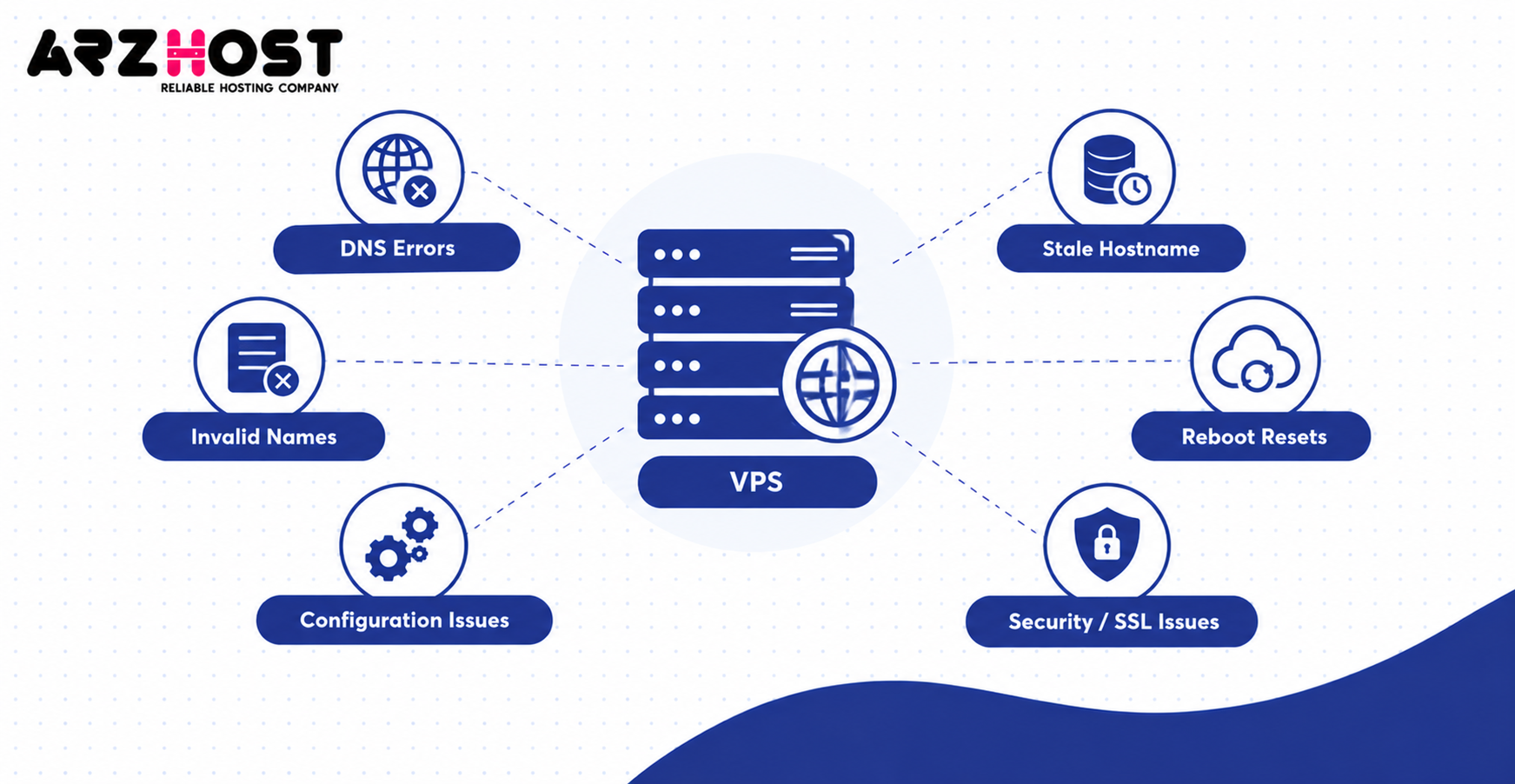
VPS hostname problems commonly result from DNS errors, invalid names, or inconsistent server configuration. Each problem requires checking the relevant part of the setup. The following table covers common symptoms and troubleshooting actions.
| Problem | Likely cause | Recommended fix |
| Hostname doesn’t resolve | Missing DNS record | Check A or AAAA record |
| Wrong IP returned | Incorrect DNS value | Update the relevant record |
| Invalid hostname | Unsupported characters | Correct hostname format |
| Old hostname still appears | Configuration mismatch | Inspect hostnamectl |
| Hostname resets after reboot | Cloud-init or automation | Check hostname management |
| SSL/TLS warning | Certificate name mismatch | Update certificate configuration |
| Email delivery issue | SMTP or PTR mismatch | Verify mail identity and reverse DNS |
| Hostname works locally only | Local-only name mapping | Configure public DNS if needed |
Why Is My VPS Hostname Not Resolving?
A hostname may fail to resolve when its DNS record is missing, incorrect, or unavailable. Check the configured address using a DNS lookup. Then confirm that your domain uses the expected authoritative nameservers.
Run:
dig +short server1.example.com A
If no IP address appears, inspect the DNS zone configuration. Also check whether the record has been published by the authoritative server. DNS caching can delay the visibility of recent changes.
Why Does My VPS Hostname Show the Old Name?
The previous hostname may remain visible when local configuration or a management tool hasn’t been updated. Compare the active hostname with the saved value. Then inspect any local mapping that references the previous name.
Run:
hostnamectl
cat /etc/hostname
grep -n ‘server1’ /etc/hosts
Replace server1 with the relevant hostname fragment when checking local entries. Different command outputs may indicate inconsistent configuration. Investigate the source of the mismatch before restarting services.
Why Does My VPS Hostname Reset After Reboot?
Cloud-init or another server management service may overwrite hostname changes during startup. This behavior depends on your VPS image and cloud configuration. Check whether cloud-init manages the hostname before editing its settings.
For manually managed hostnames, cloud-init supports:
preserve_hostname: true
This setting instructs cloud-init to preserve the existing hostname. However, its effect depends on the relevant cloud-init configuration and deployment method.
Can Changing a VPS Hostname Affect Email or SSL?
Yes, changing a VPS hostname can affect email identity, SSL/TLS certificates, and hostname dependent services. Mail servers may use the hostname during SMTP communication. Certificates can also produce warnings when their covered names don’t match the connection hostname.
Check the SMTP HELO/EHLO identity and PTR record after a mail hostname change. Verify that the relevant certificate covers the new hostname. Also update monitoring tools or application settings that reference the previous server name.
Frequently Asked Questions About VPS Hostnames
Do I Need a Domain Name for My VPS Hostname?
No, a registered domain is not required for a local VPS hostname. You can assign a short name like server1 directly within Linux. A publicly resolvable custom FQDN normally requires control of a suitable DNS domain.
Can Two VPS Servers Have the Same Hostname?
Yes, two VPS instances can share a short hostname in separate naming environments. However, duplicate hostnames within the same managed environment can cause identification problems. Use distinct names like web01.example.com and web02.example.com for separately managed public servers.
Can I Change My VPS Hostname Later?
Yes, you can generally change your VPS hostname after server creation. Linux supports hostname changes through hostnamectl, while providers may supply control-panel options. Review dependent services before changing a production hostname.
Does Setting a VPS Hostname Cost Money?
Setting a hostname on your operating system normally costs nothing. Registering a custom domain may involve a separate fee. Your hosting provider may also include DNS and reverse DNS management with its VPS service.
Does Changing My VPS Hostname Affect SEO?
Changing the operating system hostname alone does not directly change your website’s search rankings. However, incorrect DNS or web server configuration can make your website inaccessible. Problems affecting crawling, redirects, or website availability can indirectly affect search performance.
Can I Access My VPS Using Its Hostname?
Yes, you can connect using a hostname when it resolves to the correct reachable IP address. For example, SSH can connect using ssh root@server1.example.com. The SSH service must also be running and accessible through the configured network.
Is a VPS Hostname the Same as a Website Domain?
No, a VPS hostname identifies a server, while a website domain identifies a DNS name used for the website. For example, server1.example.com can identify the VPS hosting www.example.com. Both names may resolve to the same IP address without serving the same purpose.
Conclusion
A VPS hostname is the name used to identify your virtual server. Choosing a valid name and configuring DNS correctly helps maintain a consistent server identity. A short hostname works locally, while a public FQDN supports domain-based server access.
You can find, change, and verify your VPS hostname using the five steps covered above. Check your operating system configuration, DNS records, and provider settings independently. This helps prevent connection failures, mail configuration problems, and hostname mismatches.